How PCSX2 Plugins Work (and What That Means for You)
If you’re new to PCSX2, the whole “plugins” thing can sound way more complicated than it needs to be. I remember my first setup years ago—I had the BIOS sorted, I had a game ready, and then PCSX2 hit me with graphics, audio, controller, CDVD… and I just sat there thinking, “Why does an emulator need so many moving parts?”
Once you understand the idea behind plugins (and how PCSX2 handles them today), everything clicks. And more importantly, you’ll know exactly what to change when a game runs slow, the audio crackles, or your controller feels delayed.
I will explain this to you just as I would to my friend. The first step requires you to learn what plugins are. The next step requires you to learn which functions each plugin provides. The third step will show you how to select proper settings for your PC. The fourth step will teach you how to fix issues through proper troubleshooting instead of using random methods.
Note: The PCSX2 guides from earlier periods describe system requirements for separate plugin files, which include GSdx and SPU2-X, and LilyPad. Modern PCSX2 builds (including the newer 2.x era) have moved toward a more integrated approach, but the concept is the same because graphics and audio and input and disc handling remain as separate modules which now exist in better organized packages. The system will show you plugin names while you adjust settings in the same audio categories
What PCSX2 is (and why plugins exist)
PCSX2 is a free, open-source PlayStation 2 emulator that’s been around since the early 2000s. Its job is simple in theory: run PS2 games on a PC. But in practice, it’s doing something insanely complicated—recreating PS2 hardware behavior (CPU, GPU, audio chip, I/O controllers) on completely different hardware.
The PS2 wasn’t built like a modern PC. It had its own architecture and timing quirks. That’s why PS2 emulation took so long to become “good.” PCSX2 got there by building a system that emulates each major part of the PS2 in a structured way—historically using plugins, and today using tightly integrated modules that still behave like plugin categories.
So when you’re configuring PCSX2, you’re not just “tweaking settings.” You’re choosing how each PS2 component is reproduced on your machine.
The plugin idea: one emulator, multiple specialized parts
Here’s the easiest way to think about it:
- The graphics plugin/module handles video output (what you see).
- The audio plugin/module handles sound (what you hear).
- The input plugin/module handles controllers (what you press).
- The disc/ISO module handles reading game data (what you load).
- Optional modules cover things like network/HDD and USB peripherals.
Instead of building one giant “monolithic” emulator where everything is locked together, PCSX2 historically let these parts be swappable. Even now—while things are more unified—the settings remain separated for the same reason: different games and different PCs need different approaches.
Why the modular approach is actually good for beginners
It sounds scarier than it is. In real life, this modular design helps you because:
- You can fix one problem without breaking everything else.
If graphics are glitchy, you change graphics settings—not audio, not controller. - Different games behave differently.
One game might love Vulkan hardware rendering; another might need a more accurate renderer or a workaround. - You can scale quality to your PC.
On a weaker laptop, you can prioritize speed. On a gaming PC, you can upscale and enhance visuals. - Troubleshooting becomes logical.
Black screen? Usually graphics or disc/ISO. Crackling? Usually audio sync/latency. Input delay? Usually controller config or overall slowdown.
This is exactly why I like PCSX2: once you understand the categories, you stop guessing.
The core plugins (graphics, audio, input, disc, and more)
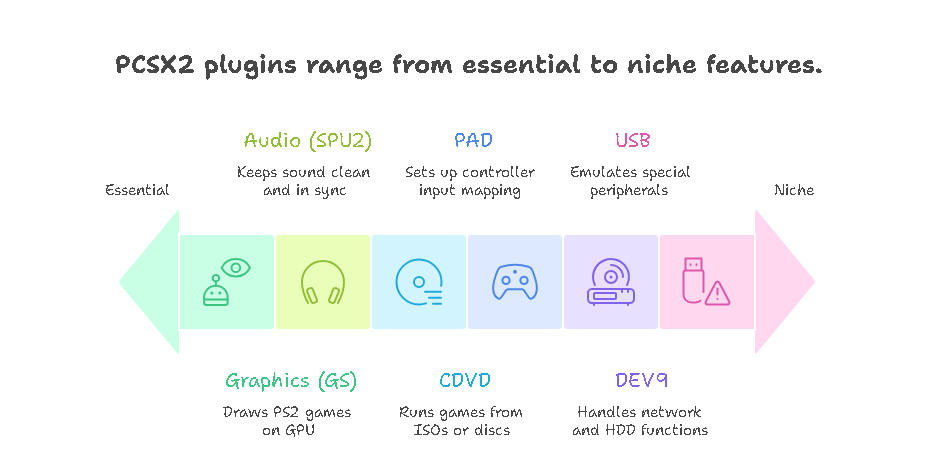
PCSX2’s classic plugin lineup (the names you’ll see in older guides) looks like this:
- GS (Graphics Synthesizer) – often called GSdx historically
- SPU2 (Sound Processing Unit) – often SPU2-X
- CDVD – ISO/disc reading (Linuz ISO / Gigaherz were common)
- PAD – controller input (LilyPad was the favorite)
- DEV9 – network + HDD
- USB – special peripherals
In modern PCSX2, you’ll still configure:
- renderer/backends (Vulkan / D3D / OpenGL),
- audio output and sync,
- input backend and mapping,
- ISO selection and boot options.
So even if the “plugin files” aren’t separate downloads anymore, the logic is identical.
Graphics (GS): how PCSX2 draws PS2 games on your GPU
If you want the biggest “wow” improvement in emulation, graphics is where it happens.
The PlayStation 2 used a special graphics processing unit which developers called the Graphics Synthesizer. PCSX2 needs to convert PlayStation 2 graphics commands into formats which can be processed by your graphics processing unit.
Common graphics backends you’ll choose from
Depending on your OS and GPU, PCSX2 typically offers options like:
- Vulkan – often excellent performance and consistency (especially modern GPUs)
- Direct3D 11/12 – strong choice on Windows
- OpenGL – sometimes more accurate; useful for specific edge cases
- Software rendering – very accurate but much slower (best for debugging or fixing specific graphical bugs)
The settings that matter most (in real-world use)
These are the ones I personally touch first when a game doesn’t look right or doesn’t run well:
- Internal Resolution / Upscaling
This is the big one. 2x or 3x often looks great without heavy cost. 4x+ looks amazing but needs GPU power. - Texture Filtering / Anisotropic Filtering
Makes textures cleaner, especially at angles (roads, walls, stadium fields). - Blending Accuracy / Hardware Hacks
Some PS2 effects (fog, shadows, outlines) can break in fast hardware modes. Increasing accuracy can fix visuals but may cost performance. - Switching Hardware ↔ Software rendering
When you see weird shadows, missing textures, or broken effects, software mode can confirm whether it’s a rendering accuracy issue.
My general advice to you: don’t chase perfect settings globally. Tune per game if needed. PCSX2 supports per-game configs for exactly this reason.
Audio (SPU2): how sound stays clean and in sync
Audio in emulation is tricky because it depends on the precise timing between different elements. The PC will show audio problems when it cannot maintain a stable rhythm because the system will produce stuttering sounds and crackling noises and delayed voice playback and music which sounds incorrect.
The SPU2-X audio plugin served as the main audio plugin for PCSX2 during its early development. The current system provides similar output modules which include WASAPI and XAudio2 and other options together with synchronization modes and latency settings and time-stretching functions.
Settings I use (and recommend you start with)
- TimeStretch / Synchronization: helps keep audio smooth even when frames fluctuate
- Latency: if you go too low, you get popping; if you go too high, controls feel delayed
- Output backend (Windows): WASAPI or XAudio2 are typically solid choices
If you’re on a weaker system, increase latency a bit. It’s better to have slightly delayed audio than constant crackling.
CDVD (disc/ISO): running ISOs vs physical discs
PCSX2 can run games from:
- a physical PS2 disc (if you still have a DVD drive)
- an ISO (a disc image)
From my experience, ISO is almost always the better option because it’s:
- faster,
- more reliable,
- less prone to read errors,
- and easier to manage.
“Boot ISO (Fast)” vs “Boot ISO (Full)”
- Fast boot skips some of the authentic PS2 boot sequence.
- Full boot is closer to real hardware behavior and can help a few picky titles.
If a game acts strange on Fast boot, try Full boot before you start changing a dozen other settings.
PAD (controller): setting up LilyPad-style mapping and modern input
Controllers are where you feel emulation quality instantly. If input is wrong, nothing else matters.
Older PCSX2 builds heavily used LilyPad for PAD input. Modern PCSX2 handles input differently internally, but you still configure the same things:
- device selection,
- mapping,
- analog deadzones,
- rumble,
- and per-game profiles.
What I recommend you use
- An Xbox controller is basically plug-and-play on Windows.
- A DualShock 4 / DualSense is great too, usually via DS4Windows on Windows.
- Keyboard works, but for PS2 games, a controller feels right.
Common input problems (and quick fixes)
- Double input / weird behavior: disable one input API (don’t run DirectInput + XInput mappings at the same time)
- Analog drift: adjust deadzones
- No rumble: enable vibration support and confirm controller driver support
DEV9 + USB: niche features you might actually need
Most people ignore these until a specific game forces you to care.
DEV9 (Ethernet + HDD)
DEV9 matters for:
- games that used PS2 network features (some communities still keep fan servers alive)
- HDD-related functions (rare for average players)
If you’re not doing online restoration projects or experimenting, you can usually leave DEV9 alone.
USB peripherals
USB emulation matters for:
- dance mats (DDR),
- music/drum games,
- special controllers,
- certain accessories.
If you’re trying to recreate the full “living room PS2” experience, this is where it gets fun—and where compatibility can get more technical.
How I match plugin/settings choices to PC specs
This is where beginners usually mess up: they copy “best settings” from a random YouTube video. The truth is, best settings depend on your hardware.
If your PC is low-end (older CPU or integrated graphics)
- Keep internal resolution at native to 2x
- Prefer a fast hardware renderer (often D3D11/Vulkan depending on system)
- Avoid heavy enhancements (shaders, extreme filtering)
- Use audio TimeStretch and slightly higher latency
If your PC is mid-range
- 2x–4x resolution is realistic
- Vulkan/D3D11 are usually great
- Moderate enhancements are safe
If your PC is high-end (gaming CPU + dedicated GPU)
- 4x+ resolution is very doable
- You can increase accuracy settings for stubborn games
- You can use per-game profiles to push some titles harder than others
Also: run your ISOs from an SSD if possible. It doesn’t “boost FPS” magically, but it can reduce stutter during streaming loads in some games.
Common plugin-related issues and how to fix them
When something breaks, don’t panic—identify the category first.
1) Black screen / no video
What I try:
- Switch renderer (Vulkan ↔ D3D11 ↔ OpenGL)
- Try software rendering for a moment (diagnostic)
- Confirm ISO is good (re-dump your own disc if needed)
- Try Full boot
2) Slow performance
What I try:
- Lower internal resolution first (biggest impact)
- Disable expensive enhancements
- Check if you’re CPU-limited (some games are heavy on CPU emulation)
- Avoid overly aggressive speed hacks if they cause instability
3) Audio crackling / desync
What I try:
- Increase audio latency slightly
- Enable/keep TimeStretch
- Reduce graphics load (because slowdown often causes audio issues)
4) Input delay
What I try:
- Confirm you’re running full speed (input lag often comes from low FPS)
- Check controller polling/mapping
- Avoid unnecessary background apps (especially on laptops)
Where PCSX2 plugins/modules are going next
PCSX2 has steadily been modernizing—cleaner UI, better defaults, more integrated components, and fewer “download this extra plugin” headaches.
What that means for you:
- easier setup for beginners,
- fewer compatibility landmines,
- and more consistency across Windows/Linux/macOS.
If you want to stay on top of changes, I personally trust:
- the official PCSX2 site/news,
- the PCSX2 GitHub (release notes/changelogs),
- and the community compatibility discussions (when a specific game is stubborn).
FAQs
Do I still need to download separate PCSX2 plugins?
Usually no on modern PCSX2 builds. The emulator includes the necessary modules. But you’ll still configure graphics/audio/input “plugin-like” categories.
What’s the best graphics renderer?
On Windows, Vulkan or Direct3D 11 are often the smoothest starting points. If a game has visual bugs, try OpenGL or software rendering to test.
Should I run PS2 games from ISO or disc?
ISO is typically faster and more stable. If you dump your own discs, you also preserve them and avoid read errors.
Why do older guides mention GSdx, SPU2-X, and LilyPad?
Those were the classic plugin names. Even if the modern emulator integrates them differently, the roles (graphics/audio/input) are the same.