
How to Setup PS2 BIOS in RetroArch (Android and iOS)
The first time I tried to run a PS2 game in RetroArch on my phone, I thought something was broken. The game loaded, the screen went black, and then nothing happened. The system showed no signs of a crash but it also produced no error messages. The system produced no sound at all. My solution to the problem required only one thing to be solved.
You have arrived at this location because you are experiencing the same problem. The good news is this. The process of establishing PS2 BIOS settings in RetroArch for both Android and iOS platforms remains simple. The user needs to learn about BIOS functions together with RetroArch requirements before determining the appropriate BIOS installation location.
In this guide, I will tell you how to setup ps2 bios in retroarch in simple steps and some other important things.
What Is a PS2 BIOS and Why It Matters
The PS2 BIOS serves as the official system software for actual PlayStation 2 hardware. BIOS stands for Basic Input Output System. The file controls system startup, hardware verification, and memory card retrieval, and game execution on actual devices.
RetroArch does not include this file for legal reasons. Without it, the PS2 core simply cannot function correctly.
Think of it this way.
The PS2 core is the body.
The BIOS is the brain.
Without the brain, nothing boots.
Is It Legal to Use a PS2 BIOS?
This is important and often misunderstood.
Using a PS2 BIOS is legal only if you dump it from a PlayStation 2 console that you own. Downloading BIOS files from random websites is not legally safe in many regions.
That said, the setup process is the same regardless of how you obtain the BIOS. RetroArch only checks whether the file is valid and correctly placed.
What Is RetroArch and Why Use It for PS2 Games?
RetroArch functions as an all purpose emulator interface. RetroArch uses cores to provide emulator functionality instead of needing users to install multiple software programs that emulate different gaming systems. Each core functions as an emulator for a particular gaming console.
RetroArch uses a core that operates on PCSX2 technology to emulate PS2 games. The core identification requires two labels, which are Sony PlayStation 2 and LRPS2 according to the particular version.
Why People Still Choose RetroArch in 2026
- One app for dozens of consoles
- Consistent interface across Android and iOS
- Advanced video and controller settings
- Frequent updates and long term support
- Strong community documentation
Devices and Performance Expectations in 2026
Before setup, it helps to know what kind of performance you can expect.
Recommended Specs for PS2 Emulation
|
Flagship phones 2024–2026 |
Full speed, 2x–3x resolution |
|---|---|
|
Mid range phones |
Playable with tweaks |
|
Budget phones |
Limited compatibility |
|
iPhone with A15 or newer |
Very good performance |
PS2 emulation is CPU heavy. Even in 2026, not every device will run every game perfectly.
Step by Step. How to Setup PS2 BIOS in RetroArch
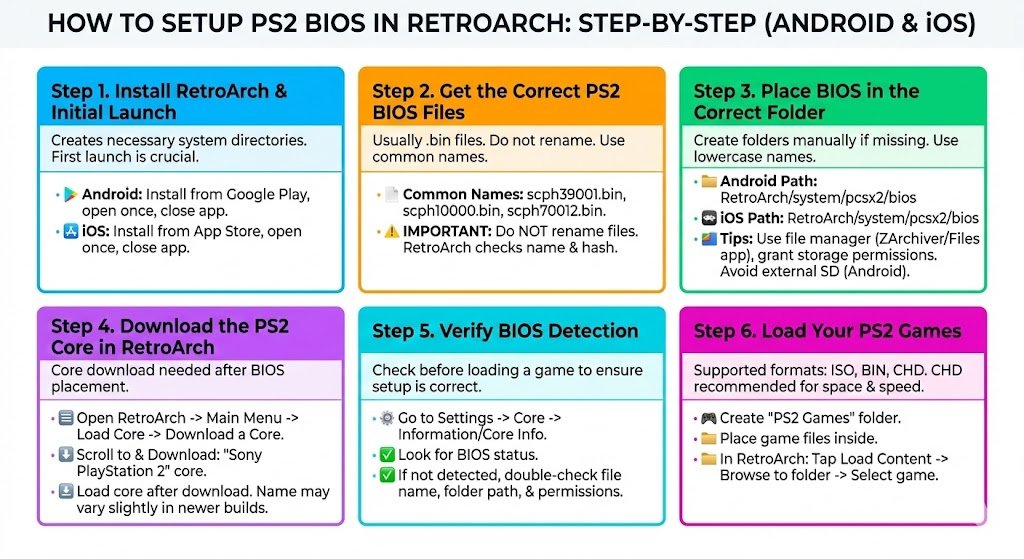
The setup process is almost the same on Android and iOS. The biggest difference is file access.
Step 1. Install RetroArch
On Android
- Open Google Play Store
- Search for RetroArch
- Install and open it once
- Close the app to generate folders
On iOS
- Open the App Store
- Search for RetroArch
- Install and launch it once
- Close the app
This first launch is important. It creates the system directories RetroArch needs.
Step 2. Get the Correct PS2 BIOS Files
A PS2 BIOS usually comes as a .bin file. Some users keep multiple BIOS files for better compatibility.
Common PS2 BIOS File Names
| USA | scph39001.bin |
| Japan | scph10000.bin |
| Europe | scph70012.bin |
Important rule.
Do not rename the BIOS files. RetroArch checks the name and hash.
Step 3. Place the BIOS in the Correct Folder
This is where most people make mistakes.
Correct Folder Path
| Android | RetroArch/system/pcsx2/bios |
| iOS | RetroArch/system/pcsx2/bios |
If the pcsx2 or bios folder does not exist, create it manually. Folder names must be lowercase.
Android Tips
- Use a file manager like ZArchiver or Files by Google
- Grant RetroArch storage permission
- Avoid placing BIOS on external SD cards
iOS Tips
- Use the Files app
- Navigate to On My iPhone > RetroArch
- Create folders if missing
- On some versions, a PC file manager like iExplorer works better
Step 4. Download the PS2 Core in RetroArch
Now that the BIOS is in place, RetroArch needs the PS2 core.
How to Install the PS2 Core
- Open RetroArch
- Go to Main Menu
- Tap Load Core
- Select Download a Core
- Scroll to Sony PlayStation 2
- Download the core
- Load the core after download
In newer 2026 builds, the core name may vary slightly, but it will always mention PlayStation 2.
Step 5. Verify BIOS Detection
Before loading a game, check if RetroArch sees the BIOS.
- Go to Settings
- Tap Core
- Open Information or Core Info
- Look for BIOS status
If BIOS files are detected, you are good to go.
If not, double check:
- File name
- Folder path
- Permissions
Step 6. Load Your PS2 Games
RetroArch supports ISO, BIN, and CHD formats.
Best Format in 2026
CHD is recommended. It saves storage space and loads faster.
How to Load Games
- Create a folder called PS2 Games
- Place your game files inside
- Open RetroArch
- Tap Load Content
- Browse to the folder
- Select your game
How to Improve PS2 Performance in RetroArch
Even with the BIOS set correctly, some games need tuning.
Best Video Driver Settings
| Most Android phones | Vulkan |
| Older GPUs | OpenGL |
| iOS | Metal or OpenGL |
After changing video drivers, restart RetroArch.
Resolution and Frame Settings
Lower settings equal better performance.
- Internal resolution: 1x or 2x
- Frame skipping: 1 or 2
- Disable unnecessary shaders
These settings can make unplayable games smooth.
Common PS2 BIOS Problems and Fixes
BIOS Not Detected
- Folder path is wrong
- File name changed
- Permissions missing
Black Screen on Boot
- Corrupt BIOS file
- Unsupported game
- Wrong video driver
Game Loads Then Crashes
- Try a different BIOS region
- Switch Vulkan to OpenGL
- Lower resolution
Can One BIOS Work on Android and iOS?
Yes. The same PS2 BIOS file works on both platforms.
What matters is:
- Correct file name
- Correct folder
- Proper permissions
RetroArch treats BIOS files the same on Android and iOS.
Why RetroArch Still Requires BIOS
Some users ask why RetroArch cannot include BIOS files like other emulators claim to do.
The answer is simple. Accuracy and legality.
RetroArch focuses on accurate emulation and long-term safety. Including BIOS files would risk takedowns and broken updates. Requiring user provided BIOS ensures the emulator remains stable and legal.
Final Thoughts
The PS2 BIOS installation process for RetroArch appears difficult to execute because of its complex structure. The process has achieved its most reliable state in 2026 because users can now make their PS2 games work through correct BIOS placement in RetroArch which operates as a PS2 emulator on both Android and iOS systems.
From my own experience, most issues come down to folder paths and permissions, not the BIOS itself. Take your time, check names, and test with a known working game.
Once everything clicks, you will have access to an entire generation of PS2 classics on your phone, running smoother than ever.
Frequently Asked Questions
Do I need multiple PS2 BIOS files?
No, but having more than one region can improve compatibility.No, but having more than one region can improve compatibility.
Can RetroArch run PS2 without BIOS?
No. A real PS2 BIOS is required.
Is RetroArch better than standalone PS2 emulators?
For customization and long term support, yes. For simplicity, standalone apps may feel easier.
What is the best game format?
CHD offers the best balance of speed and storage.