

How to Use a PS2 BIOS Image for Emulators on PC and Android
You know that feeling when you install a PS2 emulator, load your game ISO, hit “Start”… and nothing happens? Black screen, no PS2 logo, no menu, no sound. I’ve been there myself—more than once—especially when I was setting things up on a new laptop and later on my Android phone.
In almost every case, the missing piece is the same: a PS2 BIOS image.
In this guide, I will tell you all about PS2 BIOS images and their role in emulators.
What Is a PS2 BIOS Image?
A PS2 BIOS image serves as a digital version of BIOS firmware which exists on an actual PlayStation 2 console. The system brain of the PS2 functions as its core operating system which enables the console to boot up and display the PlayStation 2 splash screen while it handles memory card operations and disc game communication.
The PCSX2 emulator uses PCSX2 on Windows and PS2 emulators on Android to create an experience that resembles actual PS2 hardware. The emulator needs BIOS firmware because it requires that particular file to function as an actual PS2 console.
So the BIOS image isn’t a “bonus file.” It’s usually the difference between:
- a working PS2 boot screen + playable games
and - a black screen + errors
Why PS2 Emulators Require the BIOS
Here’s the way I explain it to friends: the emulator is like building a car’s engine, but the BIOS is the ignition key and onboard computer. Without it, the emulator can’t properly:
- initialize the PS2 system
- access core system functions
- boot many games correctly
- handle PS2 startup routines the way games expect
That’s why most PS2 emulators either:
- ask you for a BIOS during setup, or
- refuse to boot games until you add one
What You Need Before You Start (PC vs Android)
To keep things clear, here’s a simple checklist I personally follow whenever I set up a new device.
Setup Checklist (PC vs Android)
| PS2 Emulator | PCSX2 (official build) | AetherSX2-style emulator (or another PS2 emulator that supports BIOS) |
| PS2 BIOS Image | Required | Required (for most serious PS2 emulators) |
| Game Files | ISO/CHD (ripped from your discs) | ISO/CHD stored locally |
| Controller | Optional but recommended | Optional (Bluetooth controller helps a lot) |
| Storage Space | Moderate–High (games are big) | High (preferably fast internal storage) |
Important: I’m not going to point you to “BIOS download” sites. The safe and legal route is to dump/extract the BIOS from a PS2 you own, where permitted.
How to Use a PS2 BIOS Image on PC (PCSX2) in 2026
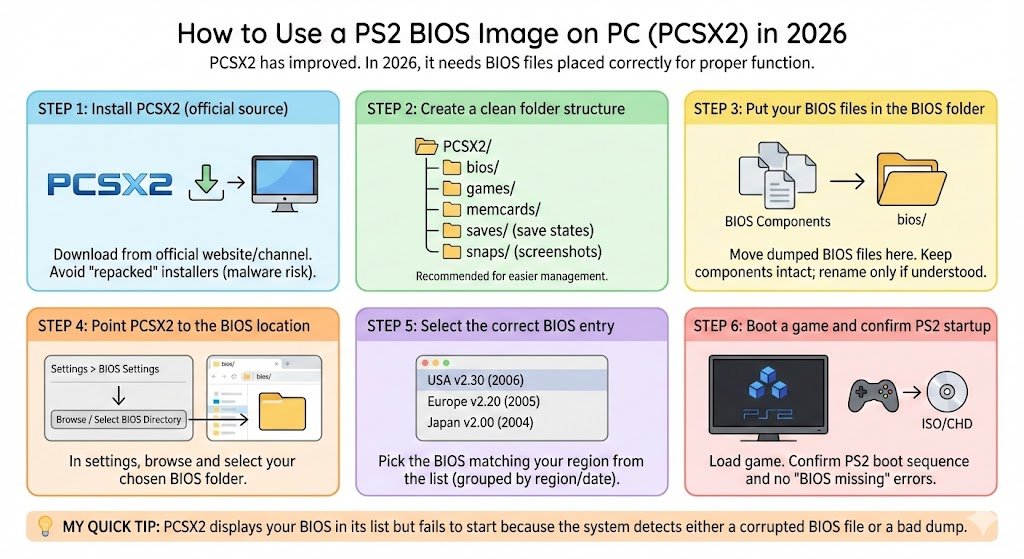
PCSX2 has improved a lot in the last few years. In 2026 PCSX2 needs BIOS files which need to be placed in specific locations to work correctly.
Step 1: Install PCSX2 (official source)
Download and install PCSX2 from its official website (or official distribution channel for your OS). Avoid random “repacked” installers—those are a common malware path.
Step 2: Create a clean folder structure (my personal recommendation)
This makes your life easier later when you troubleshoot or migrate to a new PC.
A structure like this works well:
- PCSX2/
- bios/
- games/
- memcards/
- saves/ (save states)
- snaps/ (screenshots)
Step 3: Put your BIOS files in the BIOS folder
Your BIOS files should be moved into your bios folder after you have dumped them. BIOS files usually exist as multiple components which should remain intact while you should only rename them after you fully understand the process.
Step 4: Point PCSX2 to the BIOS location
Open PCSX2 and go to the settings area (the wording can vary slightly by build), then:
- Find BIOS settings
- Choose Browse (or “Select BIOS Directory”)
- Select the folder where your BIOS files are stored
Step 5: Select the correct BIOS entry
PCSX2 will usually list BIOS entries by:
- region (USA/Europe/Japan)
- version number/date
Pick the BIOS that matches your region when possible (more on that below).
Step 6: Boot a game and confirm the PS2 startup works
Load your game ISO/CHD and start it. If everything is correct, you should see:
- the PS2 boot sequence (or at least normal game boot behavior)
- no “BIOS missing” warnings
My quick tip: PCSX2 displays your BIOS in its list but fails to start because the system detects either a corrupted BIOS file or a bad dump.
How to Use a PS2 BIOS Image on Android (2026)
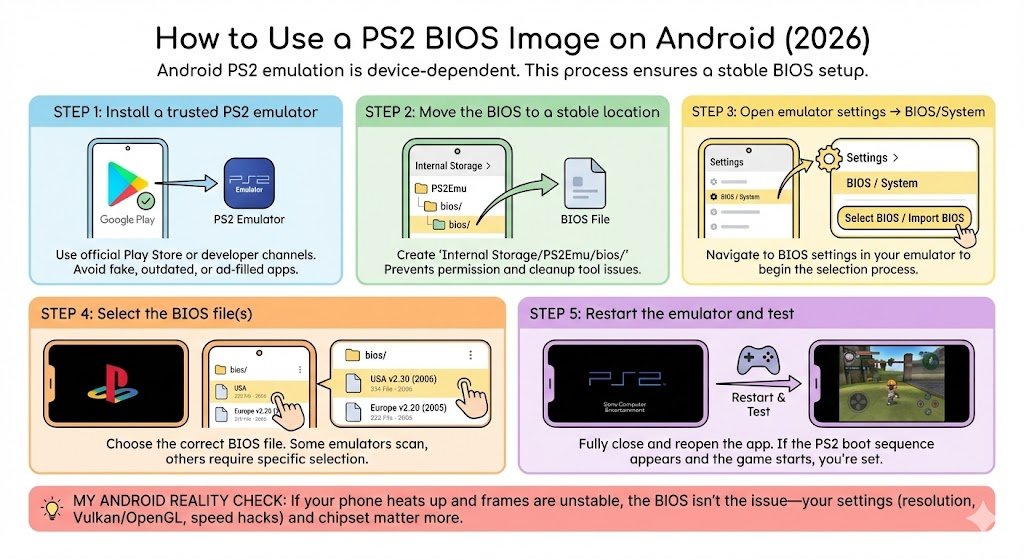
Android PS2 emulation is very device-dependent. I’ve run it on mid-range phones where it’s “okay,” and on flagship phones where it’s shockingly good. But the BIOS setup process is usually similar.
Step 1: Install a trusted PS2 emulator
The official release channel from the developer or the Play Store should be used. Be cautious: some “PS2 emulator” apps are fake, outdated, or stuffed with ads.
Step 2: Move the BIOS to a stable location
On Android, I strongly recommend a folder like:
- Internal Storage/PS2Emu/bios/
Why? Because if you scatter files in Downloads or random folders, Android permissions and cleanup tools can break your setup later.
Step 3: Open emulator settings → BIOS/System
In your emulator:
- go to Settings
- look for BIOS, System, or Console
- tap Select BIOS / Import BIOS
Step 4: Select the BIOS file(s)
Choose the BIOS from your bios folder. Some emulators want a specific BIOS file; others scan a folder and show options.
Step 5: Restart the emulator and test
Close the app fully and reopen it. Then try a game. If you see PS2-style boot behavior and the game starts normally, you’re set.
My Android reality check: If your phone is heating up and frames are unstable, BIOS isn’t the issue—your settings (resolution, Vulkan/OpenGL, speed hacks) and chipset matter more.
BIOS Regions (USA/EU/Japan): Does It Matter?
Yes, sometimes it does. In my experience:
- Most games will run fine across regions
- But some titles behave better when BIOS matches the game’s region
- A matching region can reduce weird boot quirks
Quick BIOS Region Guide
| USA | NTSC-U | US game libraries (NTSC-U ISOs) |
| Europe | PAL | European releases (PAL ISOs) |
| Japan | NTSC-J | Japanese releases (NTSC-J ISOs) |
If you have multiple BIOS versions dumped from your own hardware, keep them all and test when a game acts strange.
Best Practices (What I Do to Keep Things Stable and Safe)
Here’s what has saved me hours over the years:
- Use your own console BIOS (where permitted). It avoids corrupted files and keeps you on safer ground legally.
- Avoid “BIOS packs” online. Even when they “work,” they’re a common source of trojans and adware.
- Keep BIOS separate from game files. BIOS rarely changes; games and saves change all the time.
- Back up your memory card files and saves. Especially on Android—apps get wiped, phones get reset.
- Only update emulators from official sources. Random “mod APKs” are a security risk.
Troubleshooting (Black Screen, BIOS Not Found, etc.)
These are the exact issues I see people hit most often.
Common Problems and Fixes
| “No BIOS found” error | BIOS folder not set / wrong path | Re-select BIOS directory and rescan |
| Black screen on boot | BIOS not loaded or bad dump | Try another BIOS file; verify dump integrity |
| Game boots but crashes | Emulator settings or incompatible game build | Switch renderer (Vulkan/OpenGL), lower upscale, check compatibility notes |
| Very slow boot / stutter | Device too weak or settings too heavy | Drop resolution, enable speed hacks (carefully), close background apps |
| Android can’t “see” BIOS folder | Storage permission restrictions | Move BIOS to internal storage and grant file access |
My personal rule: if you change three things at once, you won’t know what fixed it. Change one setting, test, then continue.
Conclusion
A PS2 emulator on PC or Android is only “half a setup” until you add a PS2 BIOS image. The BIOS is what lets the emulator act like a real PlayStation 2—boot properly, run system routines, and start games reliably.
The most important lesson from my experience shows people how to maintain everything in a clean and safe condition. The user should install authenticated emulator versions while keeping their BIOS files organized and creating backup copies of their saved files. The user should stay away from dangerous downloads which might damage their system.
Please let me know which device you are using. You can provide your PC specifications or Android model details together with the emulator you selected.
FAQs About PS2 BIOS Images
Q1: Can I run PCSX2 without a BIOS?
Some builds may offer limited “BIOS replacement” options, but for accurate compatibility and fewer issues, a real BIOS is typically required.
Q2: Is it legal to download a PS2 BIOS from the internet?
In many places, downloading copyrighted BIOS files you don’t own is not legal. The safer approach is using a BIOS dumped from a console you own, where permitted.
Q3: Which BIOS version is best?
Usually, the best BIOS is the one that matches your PS2’s region and is known to be a clean dump. If you have multiple, keep them and test for problematic games.
Q4: Why does my emulator still show a black screen even with BIOS set?
Most often: corrupted BIOS, wrong directory, or a game/settings issue (renderer/resolution). Start by confirming the emulator detects the BIOS correctly, then test with a known-good game file.
Q5: Do I need BIOS for Android PS2 emulation too?
Most serious PS2 emulators on Android require it, yes. Without BIOS, many won’t boot games properly.


